


How to Leave Notes and Comments on a Startup
The Activities tab inside a startup file is where mentors can leave notes, track conversations, and keep a record of observations and follow-ups — either privately for the program team or visibly for the startup founders.
If you cannot see the Activities tab or the Startups section in the Community tab, contact your program administrator to check your visibility permissions.
Where to Find the Activities Tab
There are two ways to reach a startup's file:
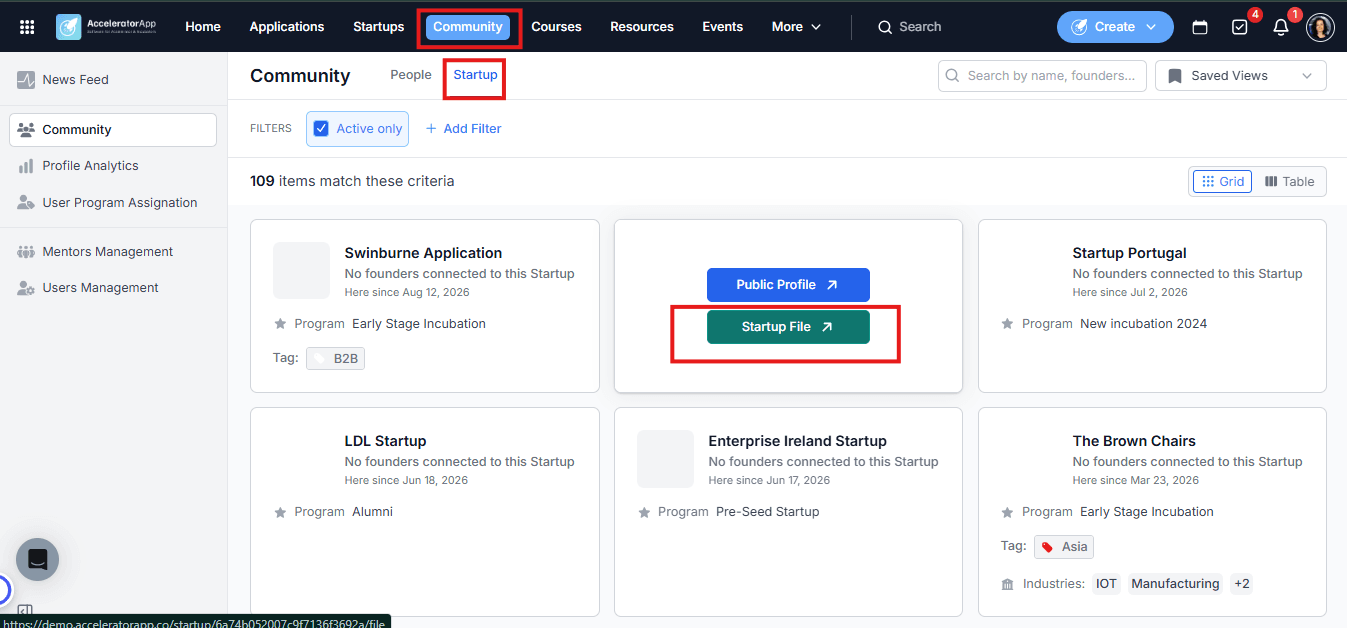
- From the Community tab — click on Community in the top menu, select the Startups tab, and browse or search for the startup you want. Click on the startup card to open the Startup File.
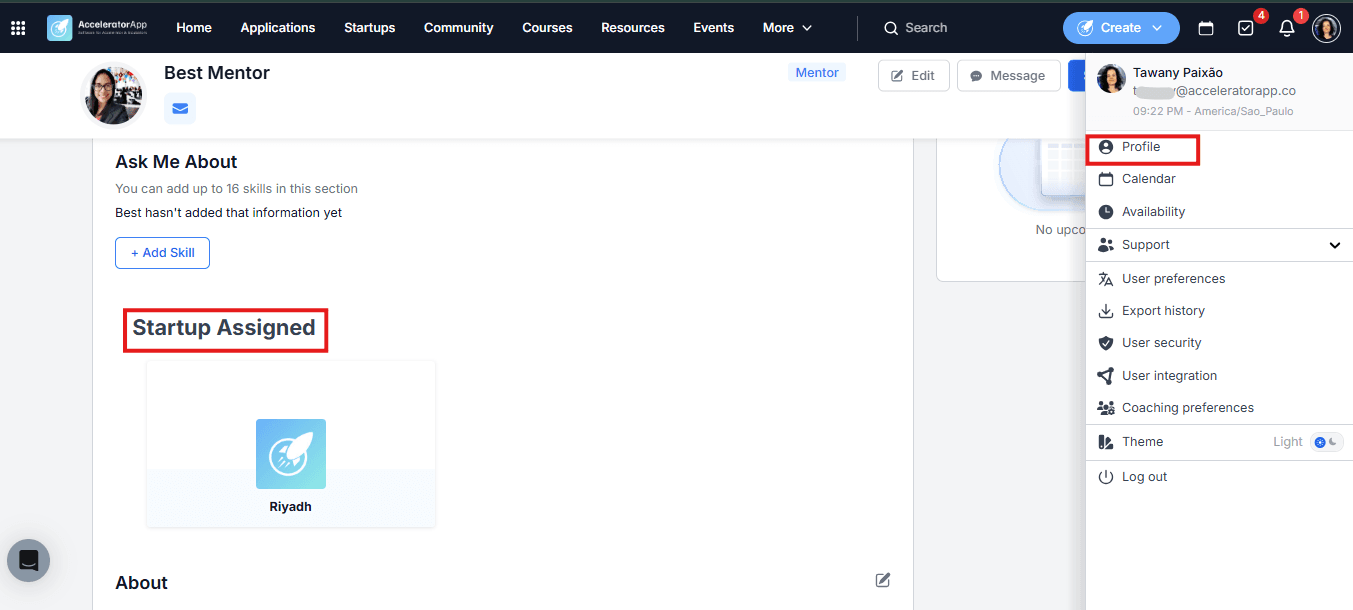
- From your own Profile — click on your profile picture in the top-right corner. Your connected startups will be listed directly on your profile page. Click on a startup to open its file.
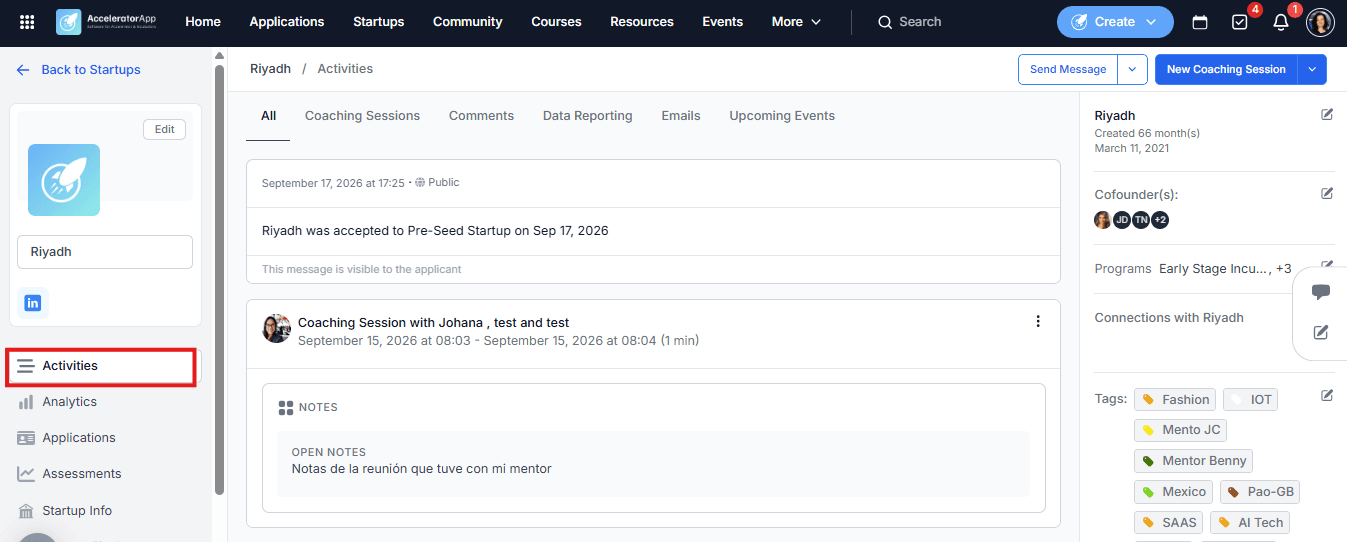
Once inside the Startup File, select the Activities tab from the left sidebar.
Step-by-Step
1. Open the Note Composer
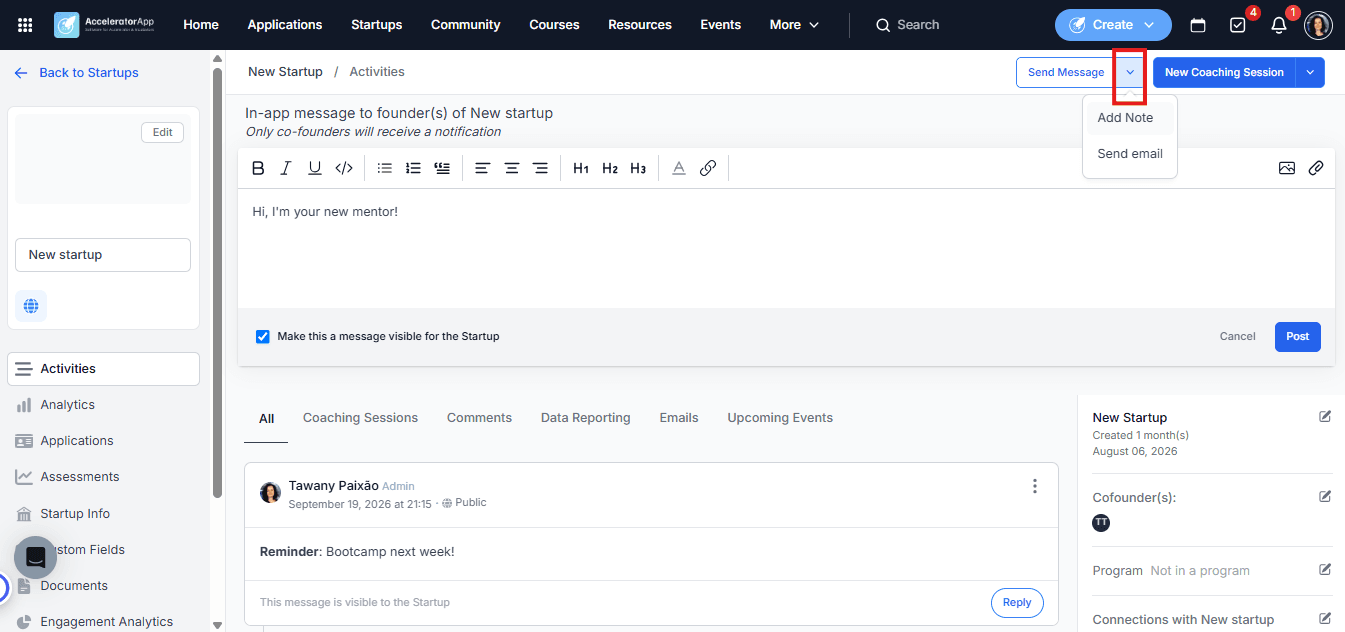
In the Activities tab, click the arrow next to the Send Message button in the top-right corner. A dropdown will appear with two options — select Add Note.
2. Write Your Note
Use the text editor to write your note. You can format it with bold, italic, underline, headings, lists, links, images, and file attachments.
3. Set Visibility
Before posting, decide who should see the note:
- Check the Make this message visible for the Startup checkbox — the note will be visible to the startup's co-founders and they will be able to reply.
- Leave the checkbox unchecked — the note will only be visible to mentors and admins. Founders will not see it.
If you want a specific co-founder to receive a platform notification about your note, tag them by typing @ followed by their name (e.g. @Jane). This is especially useful when the note is visible to the startup and requires their attention.
4. Post the Note
Click Post to publish the note. It will appear in the Activities feed immediately.
5. Manage Your Note
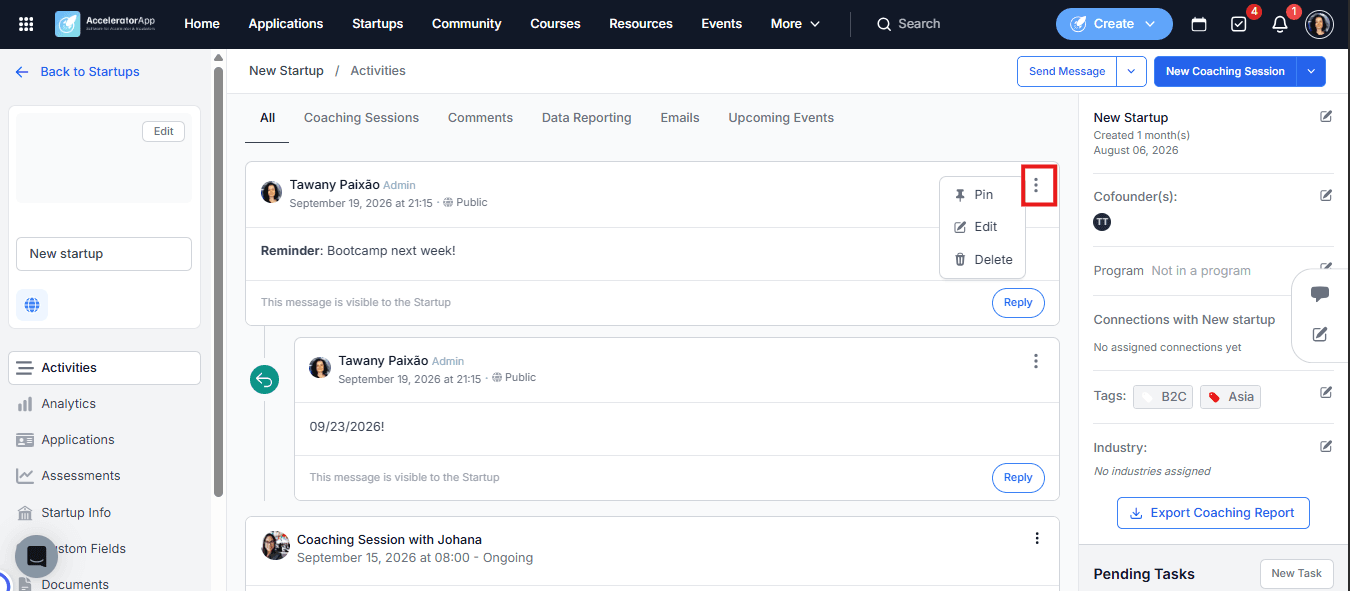
After posting, click the three dots on the top-right corner of the note to access the following options:
- Pin — fixes the note at the top of the Activities feed for easy reference.
- Edit — allows you to update the content or change the visibility setting (visible or private) even after posting.
- Delete — permanently removes the note and its entire reply thread.
6. Reply to a Note
If the note is visible to the startup, co-founders will see a Reply button and can respond directly in the thread. If they tag you in their reply, you will receive a platform notification.
If your daily digest email is enabled, these notifications will be included in your digest — they do not trigger separate emails.
Best Practices
- Use visible notes for follow-ups that require action from the startup. Checking the visibility box and tagging the relevant co-founder ensures they are notified and can respond directly in the thread.
- Use private notes for internal observations. If you want to record a concern or observation for the program team without the startup seeing it, leave the visibility checkbox unchecked.
- Pin important notes. If a note contains key information — such as agreed next steps or an important decision — pin it so it stays at the top of the feed and is easy to find later.
- Tag founders to trigger notifications. Visible notes without a tag may be missed — tagging the relevant co-founder ensures they receive a platform notification and are more likely to respond.